
Event Scan Support
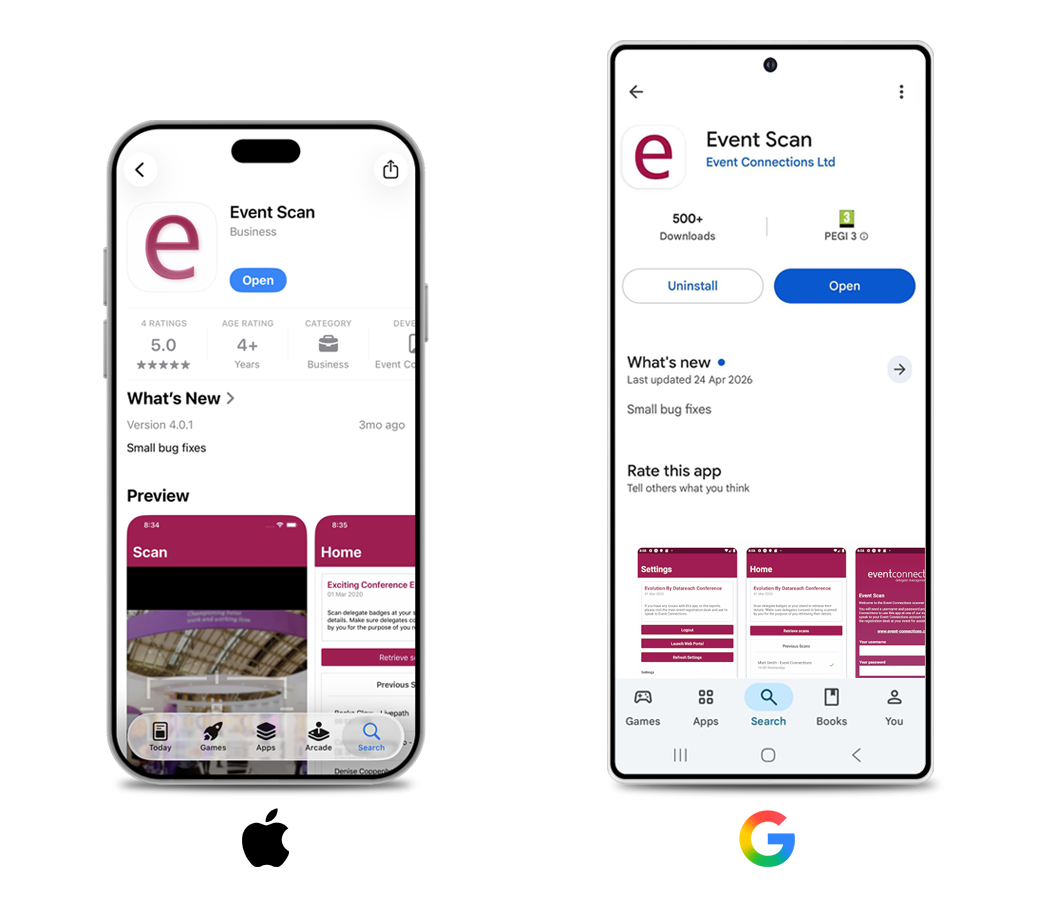
Download the app
The Event Scan app is compatible with both Android and Apple devices. Simply head over to your app store and download our app onto your device. Use the password details you set via the original email link to log in.
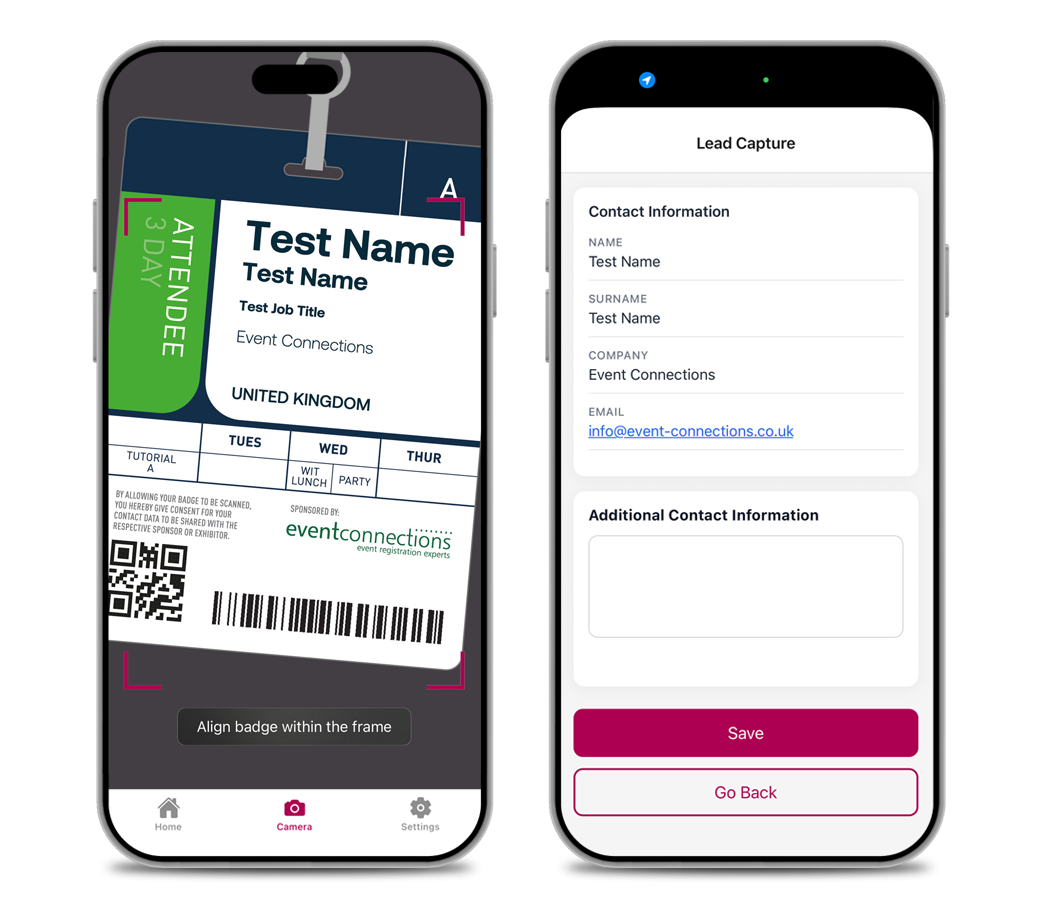
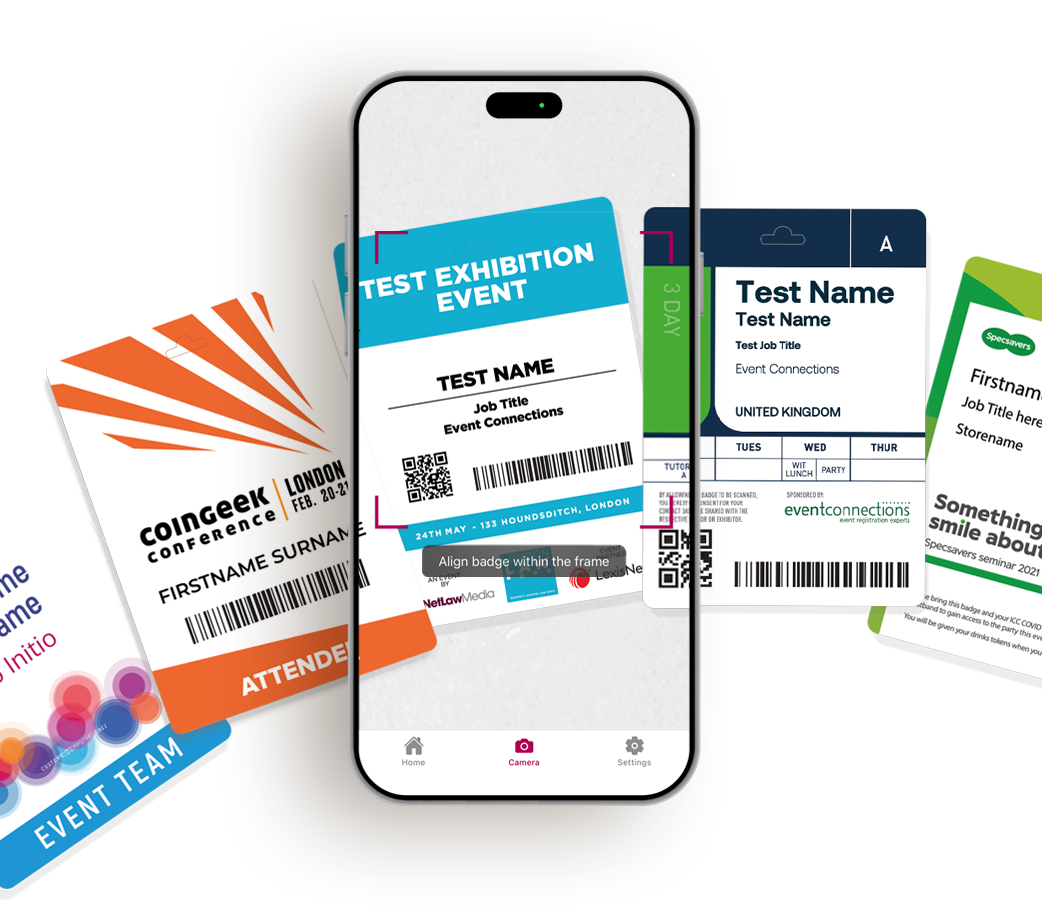
Scan a badge
Once logged in, you can instantly start scanning the QR codes or barcodes on attendee badges to view their contact details. All data is securely synced back up to the cloud ensuring that nothing is lost.
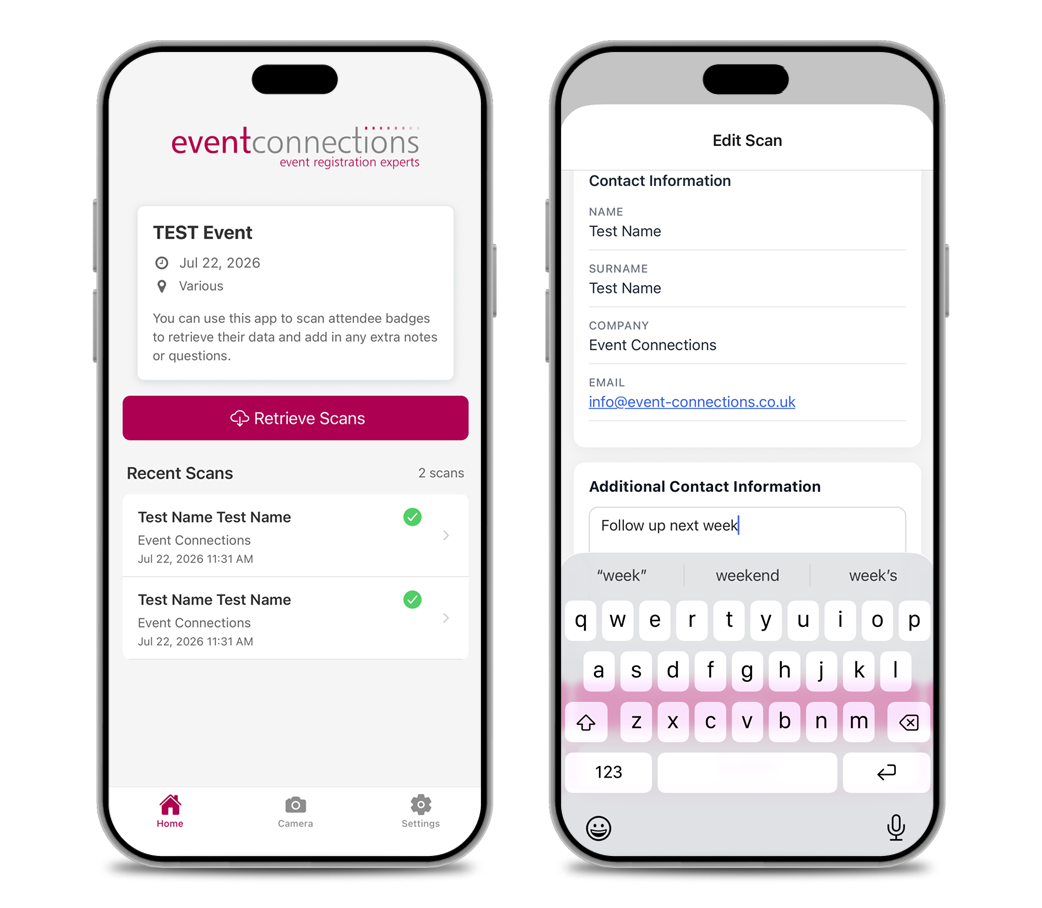
Edit your leads
You can add notes or edit previous scans at any point during the event. This is done by pressing on a recent scan displayed in the list on the home section of the app.
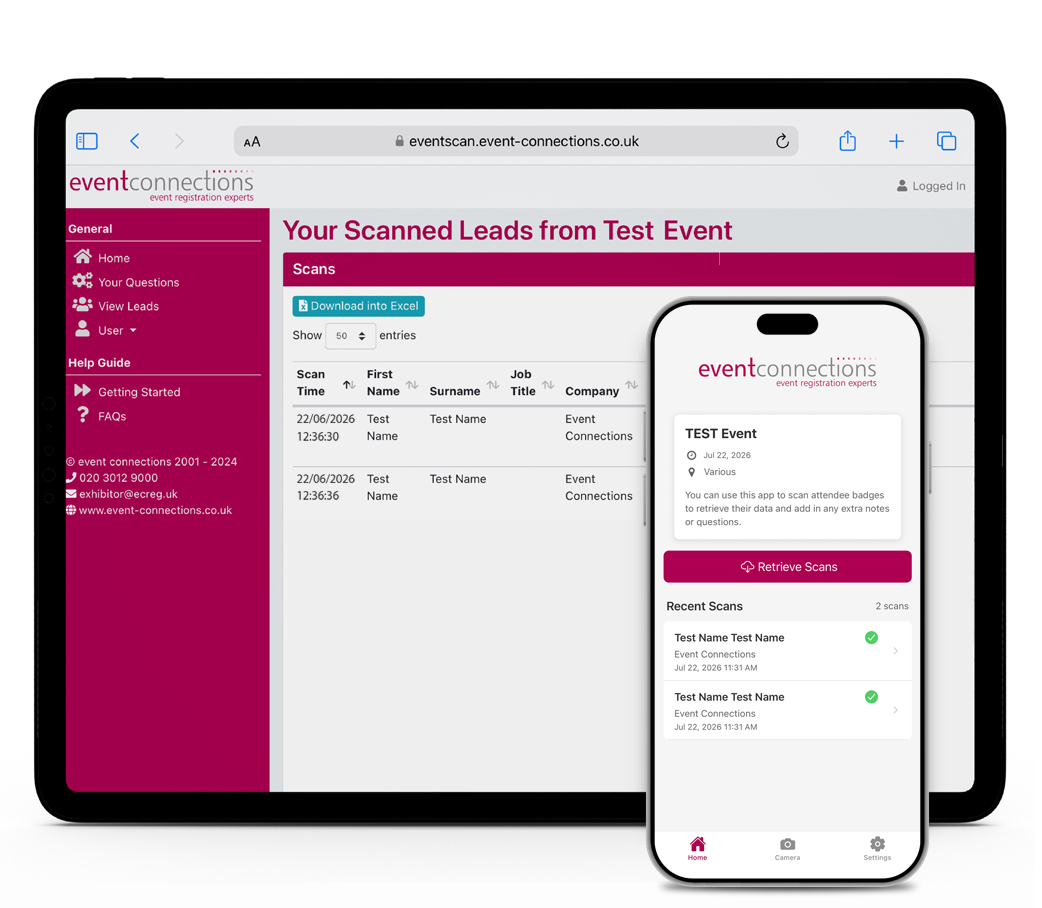
Follow up on your leads
You can see your leads on your device at the event on the app, you can also download them into an Excel spreadsheet using the web portal.
You can get there via the ‘Launch Web Portal’ button in the app or by following the link in your original email.
Still need help?
If you are on-site at an event, please head over to the main registration desk and ask for a member of the Event Connections team who will be able to help.
If you need help ahead of an event, or after the event has closed email us at: exhibitor@ecreg.uk
Advanced features:
Whether you are on the marketing team or managing remotely, you can configure the Event Scan app in advance for your onsite team.
Set up custom questions and manage access through our web portal. You can assign sub-users, control data collection fields, and track lead capture live from your desk.
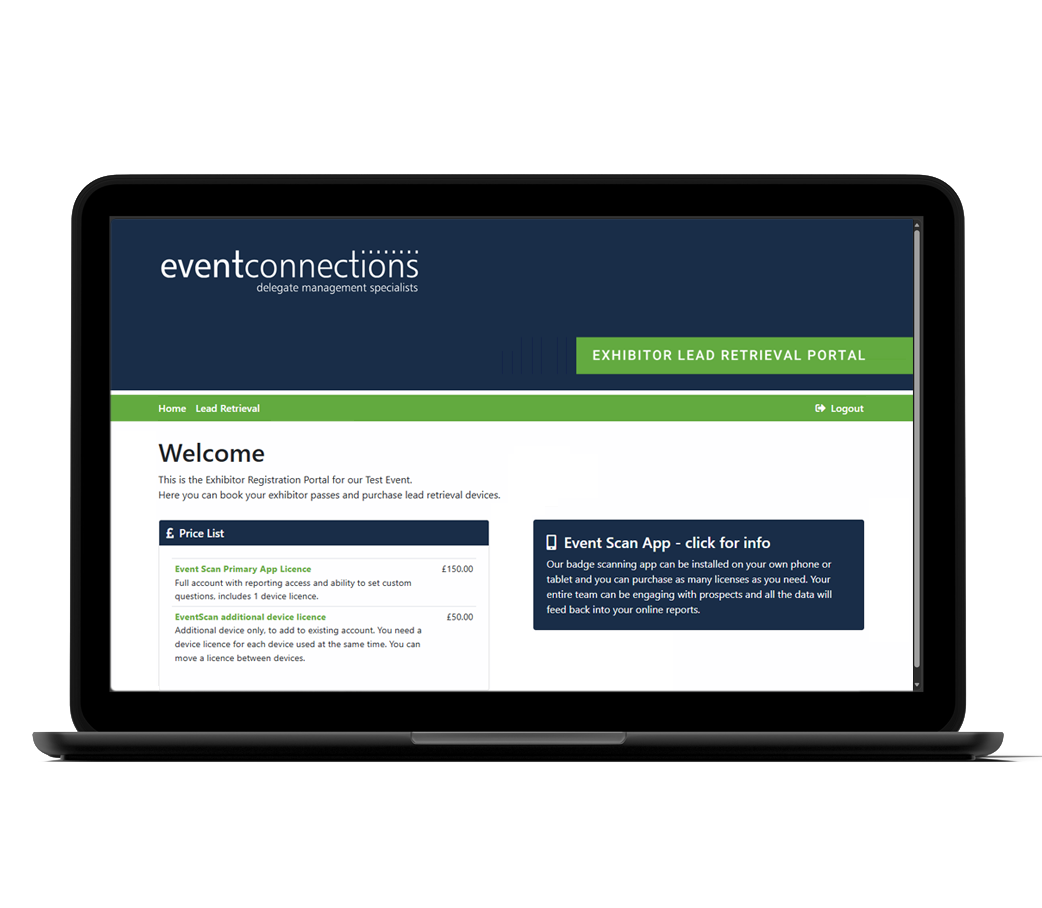
Need more app users?
To add more users to your account you will need to purchase additional device licences. Please log back into our exhibitor portal* and purchase the amount of additional device licences that you require.
*If your access to the Event Scan app was provided via the event organiser rather than directly though us, please contact them for information.
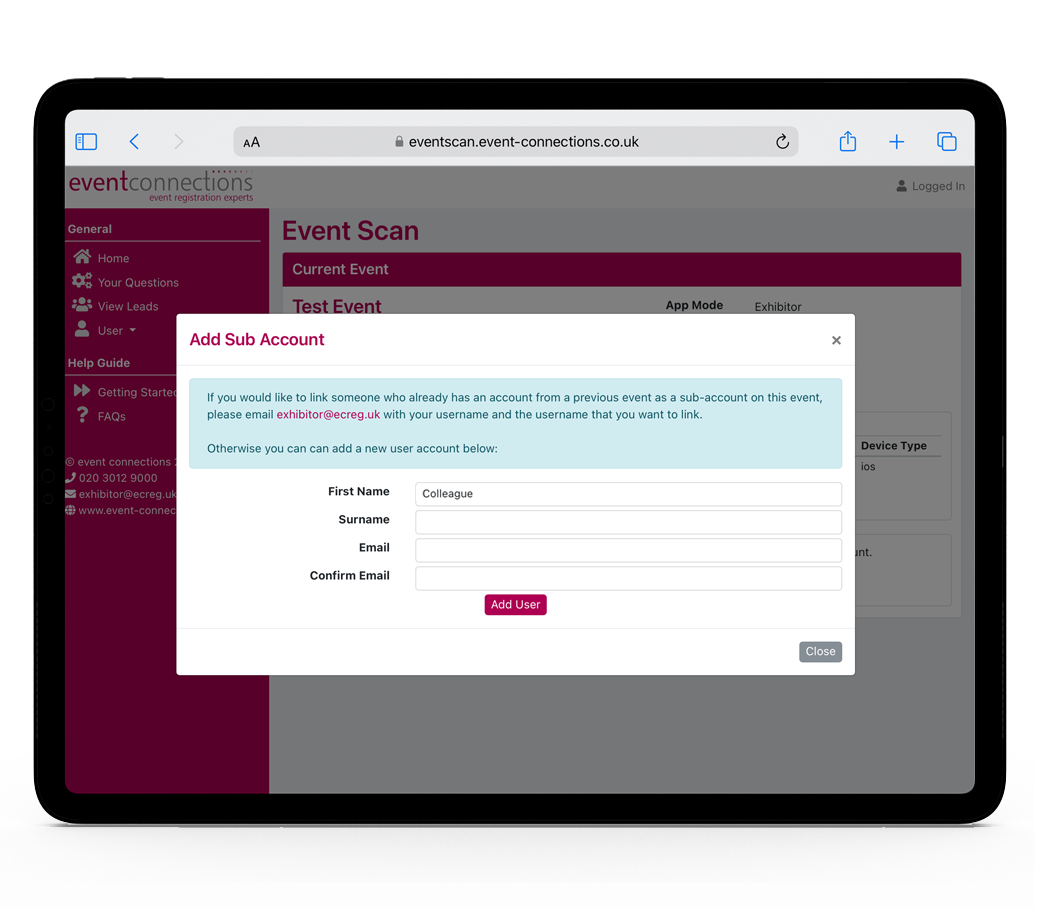
Adding additional users
Use the home tab on the web portal and click on the ‘Add sub-account’ button to enter the details of any additional users you want to add to your account.
Once added, new users will automatically receive an email with their login details. Please note that you must have purchased an additional device licence for them to use the app.
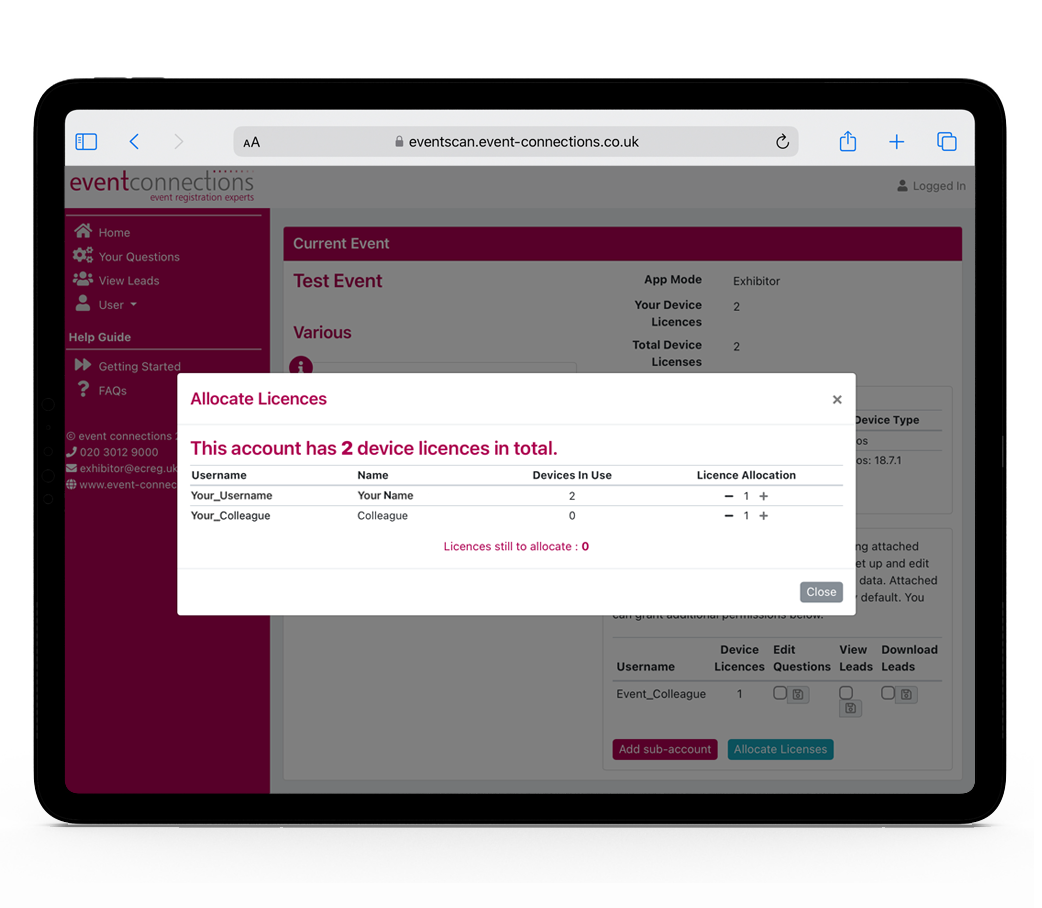
Control permissions
As admin you can control the level of access that your sub-users have.
For example, you can restrict the ability to edit the questions or download the leads onto their device, and set their device to scan only.
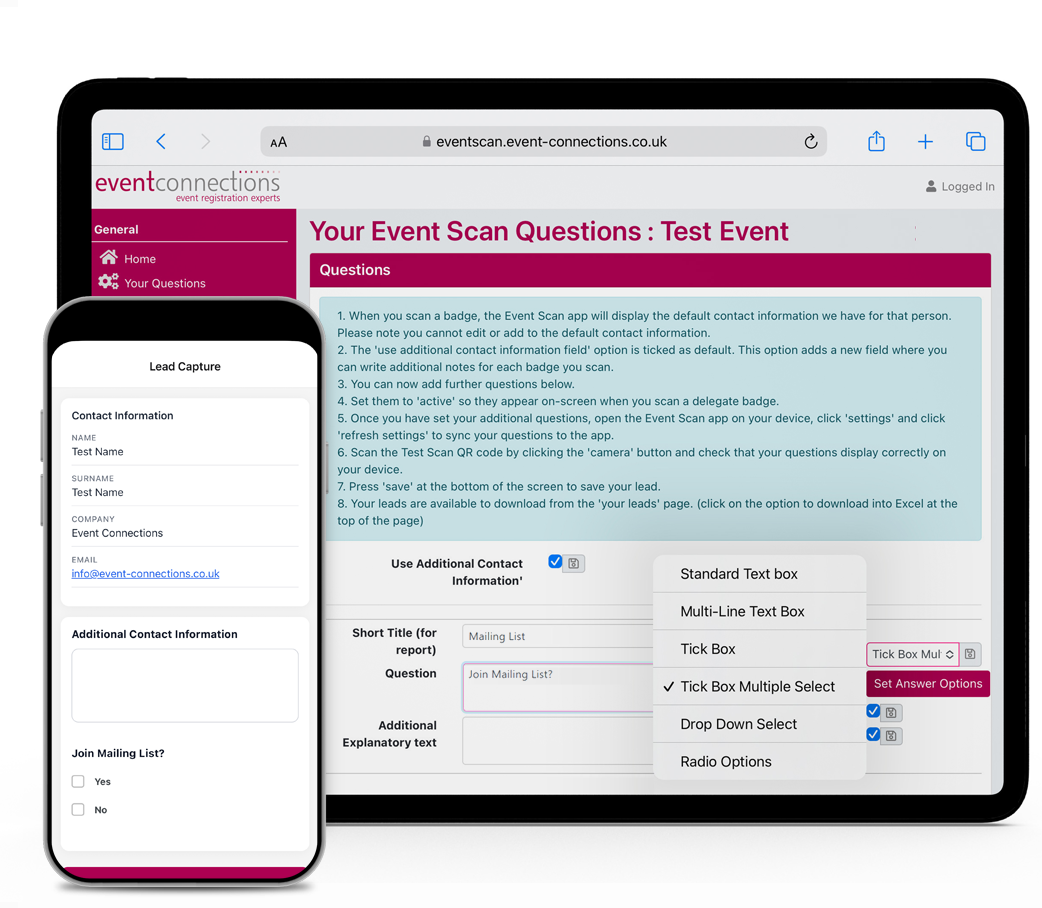
Set custom questions
You can use the “your questions” tab on the web portal to create additional questions. These appear under the contact details when scanning a badge.
You can choose from simple text boxes, multi-select tick boxes, make fields compulsory answers and more.
FAQs
-
Event Scan works at events where Event Connections supply the registration and badging. When delegates register for the event we safely store their agreed data in our system. This data is then displayed as a barcode or QR code on their badge.
When you scan a badge using the Event Scan app, their contact information is then saved into the app on your device.
-
Ideally yes, although the app will continue to scan badges and store them offline.
As soon as you re-connect to the internet these pending scans will sync across to the web portal.
Please note: you can run Event Scan on either WiFi or 5G. -
Yes.
By default the app has a text box that displays below the contact details after scanning a badge - you can type whatever you like in this field.
Please note: All of your previous badge scans display in a list on the homepage of the app. Simply press on the name and you can edit or add more notes.
-
You need to go to the web portal to download your leads - all of your scanned leads are immediately synced here from the app.
To get to the web portal you can either follow the link in your original welcome email, or directly on your device from the settings page within the app. -
A primary app licence means that you are the main admin of the app account. This allows you to add additional users on your account by purchasing additional device licences. As admin you can then control the levels of access that those users have.
Please note: Additional device licences can’t be purchased until a primary app licence has first been purchased and activated by the account user. -
If you are the primary account holder, you can add as many sub-users to your account as you want. This is done by clicking on the 'add sub-account' button on your web portal.
You can use the 'Manage Devices' section to monitor who is logged into the app, and manage what devices are logged in.
Please note: sub-users will need an active additional device licence to be able to use the app at an event. Additional licences can be purchased using the Exhibitor Portal for your event. -
As custom questions are added via the web portal, you need to sync them across to the app.
To do this, press the settings tab in the app, you will see a refresh settings button. Pressing this will pull across any edits that you have made. -
Yes.
On the your questions page on the web portal there is a test QR code.
Use Event Scan on your device to scan this QR code and you will get a preview of how your questions will appear on-screen at the event. -
You are responsible for making it clear to the individual why you are scanning their badge, and what you will do with the data you collect.
You must only scan badges where you specifically have permission from the relevant individual.
Any additional contact notes that you make in the app will be viewable only to your company and will not feed back into the central contact data we hold for the individual.